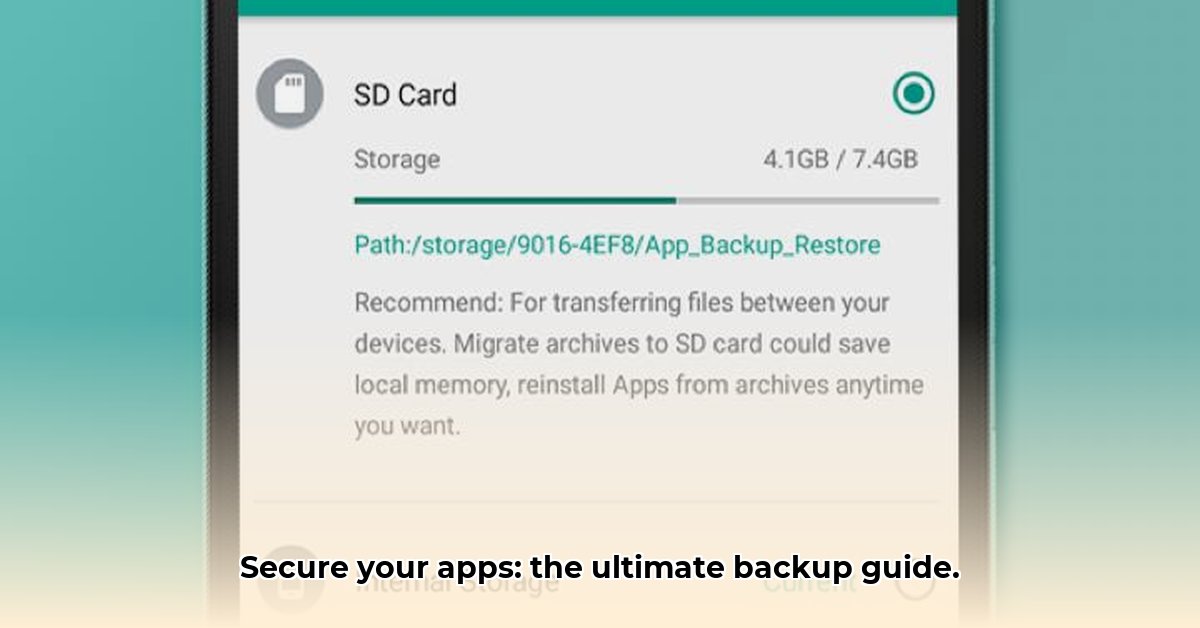
Losing your Android apps and their data can be a major headache. This comprehensive guide provides a step-by-step process for backing up and restoring your APK files (Android Package Kits), along with crucial security best practices to keep your digital life safe. We'll cover choosing the right backup app, performing backups and restores, and implementing key security measures. Whether you're a tech novice or an experienced user, this guide will empower you to safeguard your valuable app data.
Choosing the Right Backup App
Selecting the right backup app is crucial. Different apps offer varying features, security levels, and ease of use. Some apps back up locally (on your phone's storage), while others utilize cloud storage. Local backups are convenient but vulnerable to device loss; cloud backups offer accessibility and redundancy but rely on internet connectivity and the security of the cloud provider.
Let's explore some popular options, keeping in mind that app capabilities and security protocols evolve, so always check recent reviews before download:
| App Name | Pros | Cons | Security Features | Ease of Use |
|---|---|---|---|---|
| App Backup & Restore | Simple interface, free version available. | Free version features limited; paid version required for full functionality | Basic encryption; suitable for basic needs. | High |
| Helium | Works on most phones (rooted and unrooted); relatively straightforward. | Some advanced features might require a computer connection. | Offers data encryption; considered reasonably secure. | Medium |
| Google Drive Backup | Integrated with Android; simple, convenient. | Limited control over backup specifics; relies on Google's infrastructure. | Google's security measures; robust but dependent on Google. | High |
| Titanium Backup (Root) | Extremely comprehensive; backs up a wide range of data including OBB files | Requires rooting (increases security risk); steep learning curve; advanced users | Robust encryption options; advanced security settings. | Low |
Remember to carefully review an app's permissions before installation. This is a vital step in protecting your data. Don't grant unnecessary access!
Step-by-Step Backup Process (Using App Backup & Restore)
Let's detail backing up apps using App Backup & Restore. The process is surprisingly straightforward:
- Download & Installation: Obtain the app from the Google Play Store.
- Permissions: Grant the app necessary permissions to access your apps and storage.
- App Selection: Choose the apps you want to back up. You can selectively back up individual apps or entire groups.
- Initiate Backup: Tap the "Backup" button. Monitor the progress; the time required depends on the number and size of your apps.
- Verification: After completion, verify that all selected apps are included in the backup.
Troubleshooting: If the backup stalls, insufficient storage space might be the cause. Free up space by deleting unnecessary files or apps.
Step-by-Step Restore Process
Restoring your apps is equally simple:
- Optional Uninstall: Uninstall the app if already installed; this ensures a clean install from the backup.
- Open App: Launch App Backup & Restore and navigate to the restore section.
- Selection & Restoration: Select the app to restore and initiate the process.
- Verification: Once complete, confirm the app's installation and functionality; you might need to re-log into any associated accounts.
Security Best Practices
Prioritizing security is paramount. Here's how you can significantly reduce the risk of app data loss or unauthorized access:
- Source Verification: Download apps solely from the official Google Play Store to minimize malware risks.
- Backup Frequency: Implement a regular backup schedule (daily or weekly) depending on your app usage patterns.
- Multiple Backup Locations: Utilize both local and cloud backups for redundancy and protection against device loss or cloud service failures.
- Strong Passwords & 2FA: Employ strong, unique passwords for all accounts and enable two-factor authentication (2FA) whenever possible.
- App Authenticity Checks: Before installing, always verify the app's authenticity and developer reputation.
Advanced Techniques
For more advanced users, here are additional strategies:
- OBB File Backups: For games and apps with large data files (OBB files), ensure your chosen backup app supports these.
- Android Version Compatibility: Be aware that backup and restore procedures may differ slightly across Android versions.
- Third-Party Tools: Explore more advanced tools to handle specific backup needs or enhance security measures, but proceed cautiously and research thoroughly.
Regular backups and strong security practices are your best protection against app data loss. Stay informed about evolving security threats and adapt your practices accordingly. This comprehensive approach will ensure the longevity and safety of your valuable app data.
⭐⭐⭐⭐☆ (4.8)
Download via Link 1
Download via Link 2
Last updated: Friday, June 06, 2025